

- Points
- 184

To resolve the issue with the curl_exec function not being available in WHMCS, you need to ensure that the cURL extension is enabled and that curl_exec is not disabled in the PHP configuration. Here's a step-by-step detailed guide to resolve this issue:
Step 1: Check and Enable cURL Extension in PHP
Using EasyApache in WHM
- Log in to WHM as the 'root' user.
- Navigate to EasyApache:
- In the WHM search bar, type "EasyApache" and click on it.
- Alternatively, go to Software > EasyApache 4.
- Customize Profile:
- Click on the Currently Installed Packages or Customize button next to the profile you want to modify.
- Select PHP Extensions:
- Go to the PHP Extensions section.
- Enable cURL:
- In the list of extensions, find curl and ensure it is checked.
- Click on Next to proceed.
- Review and Provision:
- Review the changes and click on Provision to apply the changes.
- Restart Apache:
- After the provisioning is complete, restart Apache to apply the changes.
Code:sudo systemctl restart httpd
- After the provisioning is complete, restart Apache to apply the changes.
Step 2: Ensure curl_exec is Not Disabled
- Locate the Correct php.ini File:
- Determine which php.ini file is being used by PHP. You can find this information by creating a phpinfo file or running the following command:
Code:php -i | grep "Loaded Configuration File"
- This will display the path to the php.ini file.
- Determine which php.ini file is being used by PHP. You can find this information by creating a phpinfo file or running the following command:
- Edit the php.ini File:
- Open the php.ini file in a text editor. For example:
Code:nano /path/to/php.ini
- Open the php.ini file in a text editor. For example:
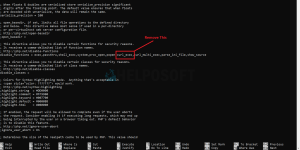
- Modify the disable_functions Directive:
- Locate the line that starts with disable_functions.
- Ensure that curl_exec is not listed in this directive. If it is, remove it. The line might look something like this:
Code:disable_functions = exec,passthru,shell_exec,system,proc_open,popen,curl_exec,curl_multi_exec,parse_ini_file,show_source
- Change it to:
Code:disable_functions = exec,passthru,shell_exec,system,proc_open,popen,parse_ini_file,show_source
- Save the Changes and Exit:
- Save the php.ini file and exit the text editor.
Step 3: Verify and Restart Services
- Restart Apache and PHP-FPM (if applicable):
- Restart Apache to apply the changes:
Code:sudo systemctl restart httpd
- If you are using PHP-FPM, restart it as well:
Code:sudo systemctl restart php-fpm
- Restart Apache to apply the changes:
- Verify cURL Extension and Functions:
- Create a phpinfo file to verify that the cURL extension is enabled and that curl_exec is available.
- Create a file named phpinfo.php in your web server's root directory with the following content:
Code:<?php phpinfo(); ?>
- Access this file via your browser (e.g., http://yourdomain.com/phpinfo.php) and look for the cURL section to ensure it is enabled.
Step 4: Verify WHMCS
- Log in to WHMCS Admin Panel:
- Access the WHMCS admin panel and check if the licensing error is resolved.
- Check WHMCS System Health:
- Go to Help > System Health Status in the WHMCS admin panel.
- Ensure that there are no errors related to curl_exec.
Additional Troubleshooting
If you still encounter issues, here are a few additional steps:- Check for Multiple php.ini Files:
- Ensure there are no other php.ini files overriding the settings.
- Check for User-Specific php.ini Files:
- Some configurations might have user-specific php.ini files. Check the user's home directory for any php.ini or .user.ini files.
- Verify PHP-FPM Pool Configuration (if applicable):
- If you are using PHP-FPM, check the pool configuration files in /etc/php-fpm.d/ to ensure curl_exec is not disabled.
- Review Error Logs:
- Check the Apache and PHP error logs for any additional information.
Attachments

Last edited:


